



Windows app · UZYTAK Shot
Screenshots and screen recordings in seconds
Press Print Screen, drag a rectangle – done. The picture is already in your clipboard, and a small card in the corner lets you copy, save, edit or pin it, or drag it straight into a chat or an e-mail.
UZYTAK Shot does what the built-in Snipping Tool cannot: whole long pages and chats in one picture, numbered steps for instructions and hiding e-mails and phone numbers in one click. Your pictures never leave your PC – no account, no cloud, no subscription.
- Screenshot, video, OCR
- Free + Pro, pay once
- No account, no cloud
- Works offline
- 10 languages
Windows 10 and 11 · your pictures stay on your PC
What you can do
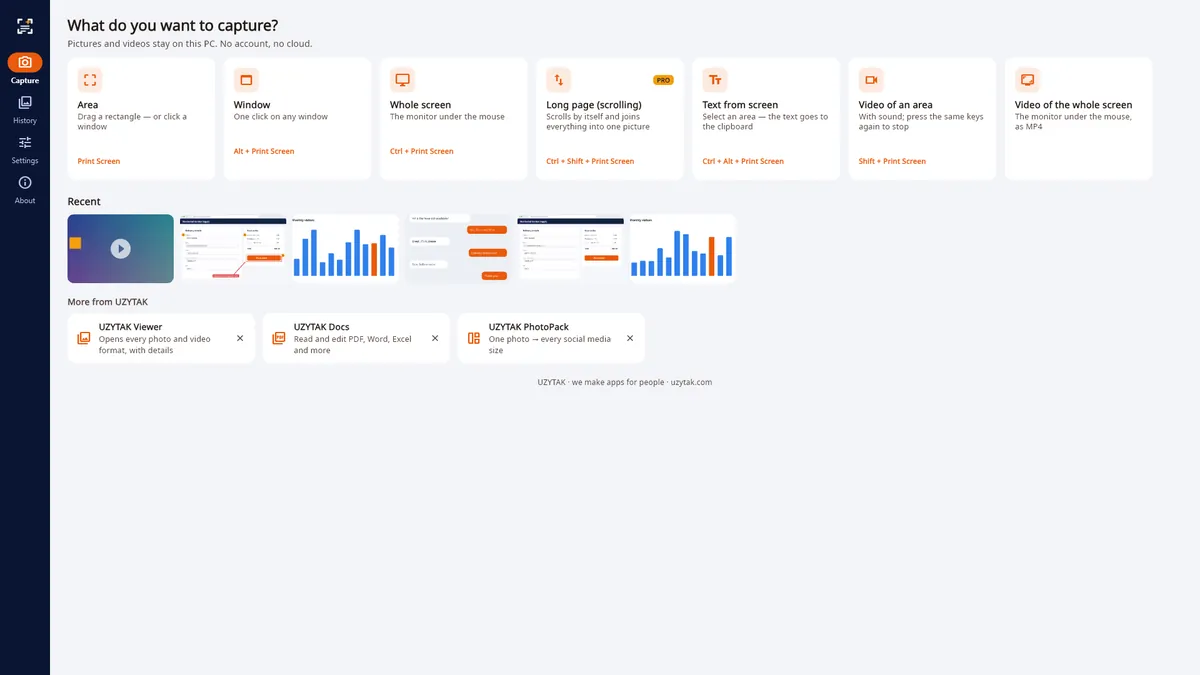
Area, window, screen
One key for an area, a window or the whole screen
A card after every capture
Card after every capture: copy, save, edit, pin or drag into any app
Long pages in one picture
Long pages and chats in one picture (Pro)
Editor
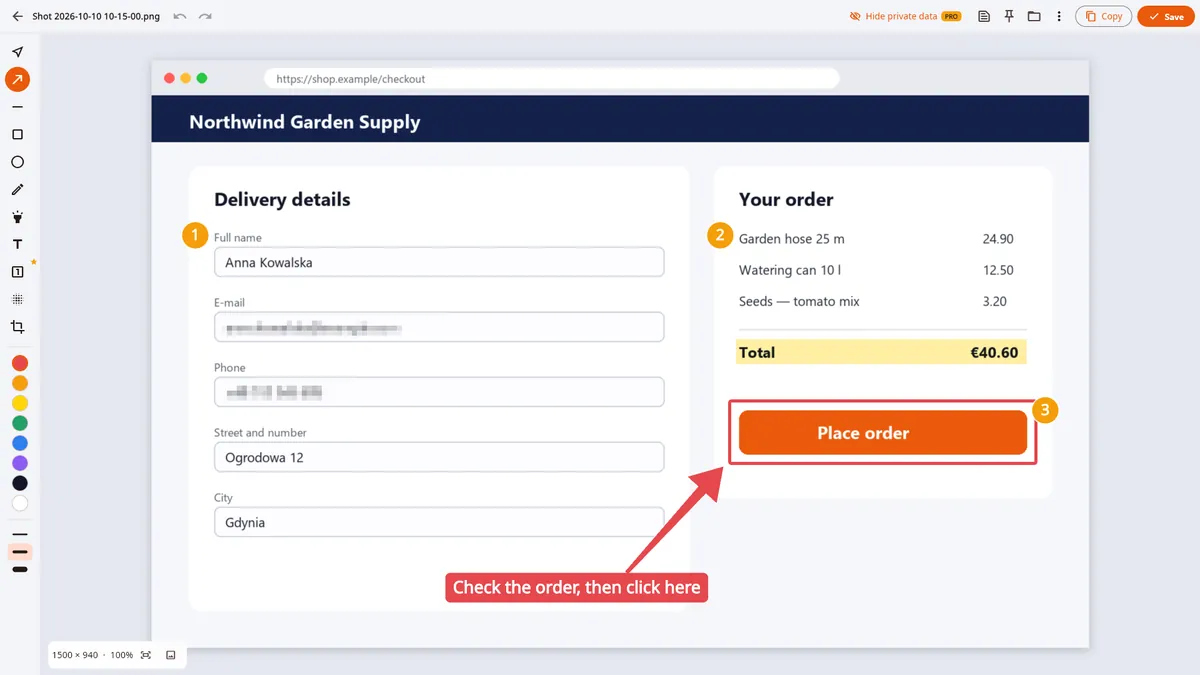
Arrows, boxes, text, highlighter, numbered steps, pixelate, crop
Hide private data
Hide e-mails, phone numbers and account numbers in one click (Pro)
Text from pictures
Copy the text from any picture – offline
Screen video and GIF
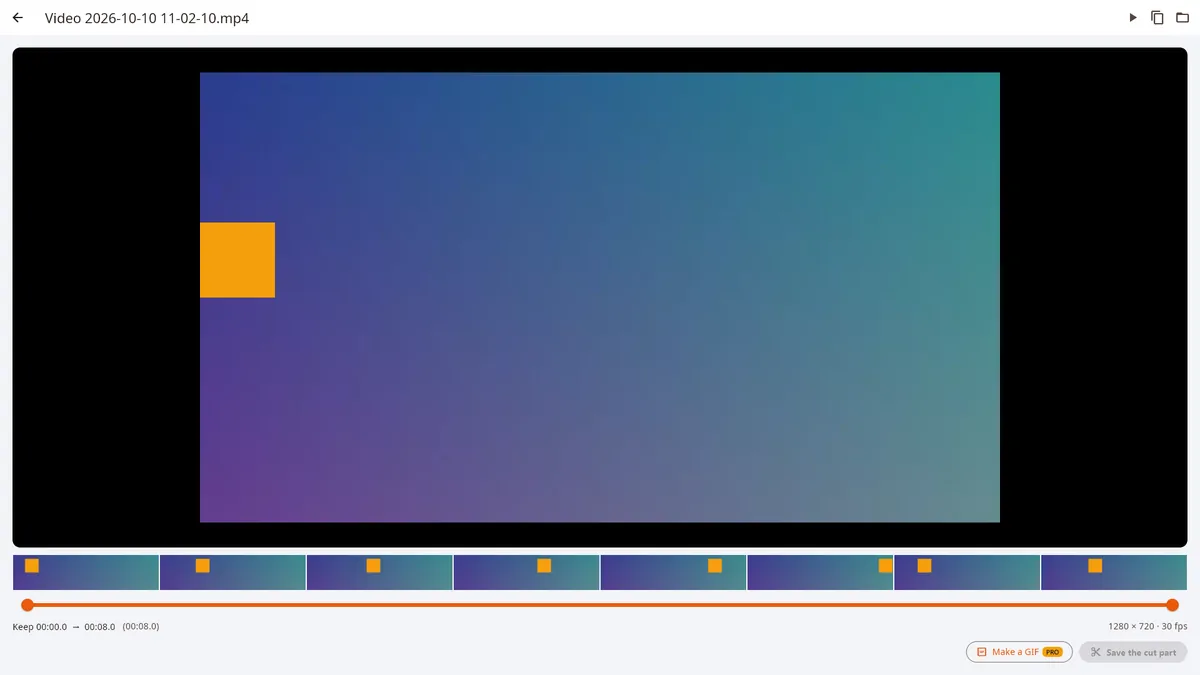
Screen video with sound, cut it, make a GIF
Private by design
Nothing leaves your PC: no account, no cloud, pay once
Inside the app
How it works
1. Press a key
Print Screen drags an area, Alt + Print Screen picks a window, Ctrl + Print Screen takes the whole screen. The picture is already in the clipboard.
2. Use the card
A small card in the corner lets you copy, save, edit or pin the picture — or drag it straight into a chat or an e-mail.
3. Mark it up
Add arrows, boxes, text and numbered steps, pixelate what is private, then save or copy. In Pro, one click hides e-mails, phone numbers and card numbers for you.
Free and Pro
Everything for everyday screenshots is free, with no watermark. Pro is for long pages, instructions and sharing safely.
Free
- Area, window or whole screen – one key, or a click on any window
- Editor: arrows, boxes, text, highlighter, pen, pixelate, crop, undo
- Copy the text from any picture (Windows OCR, offline)
- Pin a picture on top of all windows
- Screen video in MP4 with sound, up to 5 minutes, and cutting
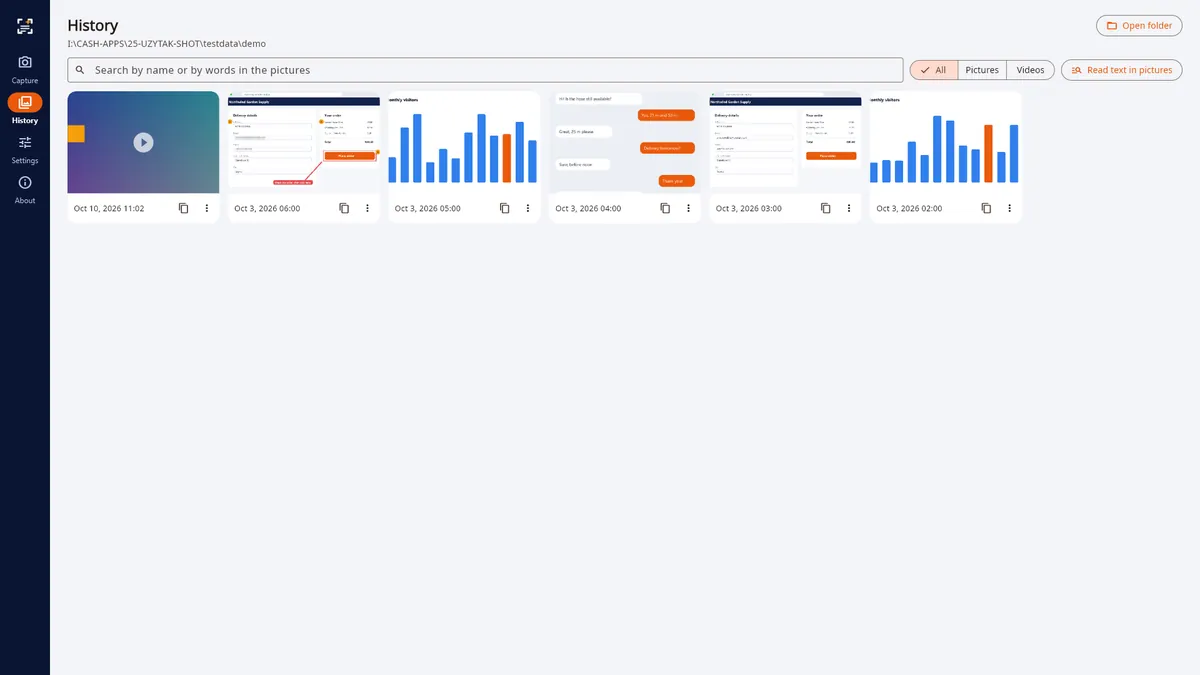
- History with search – even by words inside your screenshots
- No watermark, no ads from other companies
Pro
Pay once, no subscription
- Long page (scrolling capture) – any program scrolls by itself and is joined into one picture
- Hide private data – e-mails, phone numbers, IBANs, card numbers and links in one click
- Numbered steps for instructions and support
- Save as PDF (A4 pages)
- GIF from any recording
- Screen videos without a time limit
- No "More from UZYTAK" blocks
Pro is a one-time add-on in the Microsoft Store: €14.99, no subscription. The Store shows the price in your currency.
Good to know
- UZYTAK Shot is a Windows app for Windows 10 and Windows 11.
- Pictures and videos are saved in your Pictures\UZYTAK Shot folder unless you choose another folder in Settings.
- Text from pictures uses the recognition built into Windows. It works offline, in the languages Windows has installed for it.
- Screen video is MP4 with the sound of the computer and, only if you switch it on, the microphone. The free version records up to 5 minutes, Pro has no limit.
- Windows keeps Print Screen for its own Snipping Tool. UZYTAK Shot notices this and offers to switch that off in Windows settings or to use Ctrl + Shift + 1…6 instead.
- Everything works offline. There is no account and no cloud — your pictures never leave your PC.
Full-page screenshot in your browser
UZYTAK Shot is also a browser extension for Chrome, Edge, Opera, Brave and Firefox. One click, and the whole web page becomes one image.
- Whole page, visible part or any area you select
- Sticky headers and cookie bars appear only once; lazy-loaded images are loaded first
- Works in web apps with their own scrolling area, such as mailboxes
- Copy to the clipboard, download PNG, crop; history of recent captures stored only in your browser
Free
Whole-page screenshot, unlimited, with no watermark.
Pro
PDF export (A4 pages or one long page), JPG, full editor with arrows, boxes, text, marker, numbered steps and pixelate, unlimited history.
The extension works only on the tab where you click its button and needs no access to all websites. Nothing is uploaded.
Your pictures stay on your PC
UZYTAK Shot works offline. There is no account, no ads, no analytics and no telemetry. Pictures, videos and recognised text stay on your PC in your folder. The microphone is used only when you switch it on. Windows text recognition runs on your PC. The browser extension collects no data either; only if you buy Pro, its licence key is checked with Lemon Squeezy.
Questions or ideas?
Write to us — a small team answers in your language and adds what users ask for.
Questions
What can UZYTAK Shot do that the Windows Snipping Tool cannot?
It takes whole long pages and chats in one picture by scrolling by itself, adds numbered steps, hides e-mails, phone numbers and card numbers in one click, saves PDF and GIF, and keeps a history you can search — even by words inside your screenshots. Long page, hiding, numbered steps, PDF and GIF are Pro; the rest is free.
Is UZYTAK Shot free?
The everyday tools are free for good: area, window and whole screen, the card after every capture, the editor, copying text from pictures, pinning, screen video with sound up to 5 minutes and the searchable history, with no watermark. Pro costs €14.99 once in the Microsoft Store and adds long pages, hiding private data, numbered steps, PDF, GIF, unlimited video and removes the “More from UZYTAK” blocks. There is no subscription.
Print Screen does not work — what can I do?
Windows keeps Print Screen for its Snipping Tool. UZYTAK Shot notices this and offers a way out: switch it off in Windows (Settings → Accessibility → Keyboard → “Use the Print screen button to open screen capture”), or use Ctrl + Shift + 1…6 instead of Print Screen.
Do my pictures leave my PC?
No. There is no account and no cloud. Pictures, videos and recognised text stay in your folder on your PC, and text recognition is the one built into Windows, working offline. The microphone is used only when you switch it on.
How do I take a screenshot of a long page or a chat?
Press Ctrl + Shift + Print Screen (Pro): the program scrolls by itself and joins the parts into one picture, keeping a sticky header once. For web pages you can also use the free browser extension.
How do I copy text from a picture or from the screen?
Press Ctrl + Alt + Print Screen and select an area — the text goes to the clipboard. It uses the recognition built into Windows, offline. In History, “Read text in pictures” lets you search your screenshots by the words inside them.
Can I record the screen with sound?
Yes. Press Shift + Print Screen, record, and press the same keys to stop. The result is an MP4 with the sound of the computer, plus the microphone if you switch it on. You can cut the start and the end; a GIF is a Pro feature. The free version records up to 5 minutes.
Where are my screenshots saved?
In your Pictures\UZYTAK Shot folder by default; you can choose another folder in Settings. The History page shows everything, with search by name and by words in the pictures.
UZYTAK Shot · Windows · support@uzytak.com · Privacy policy