UZYTAK Mural · guide

Instructions, description and prices

Everything you need to put a sketch on a wall with UZYTAK Mural: equipment, the five steps, the controller buttons, safety rules and the plans.

Coming to Meta Horizon Store← UZYTAK Mural

Description

UZYTAK Mural is a mixed reality app for Meta Quest. It places your sketch or photo on a real wall, so you see the picture in place and at its real size through the headset cameras.

The picture is anchored to 3–5 paper markers on the wall. You stretch it by the corners or type the exact size in metres, lock it and trace the outlines with chalk, oil pastel or graphite. When the outlines are on the wall, you take the headset off and paint in the usual way.

It works for walls of any size: a free picture can be up to 10 m², with Pro there is no limit, and big facades can be split into sections.

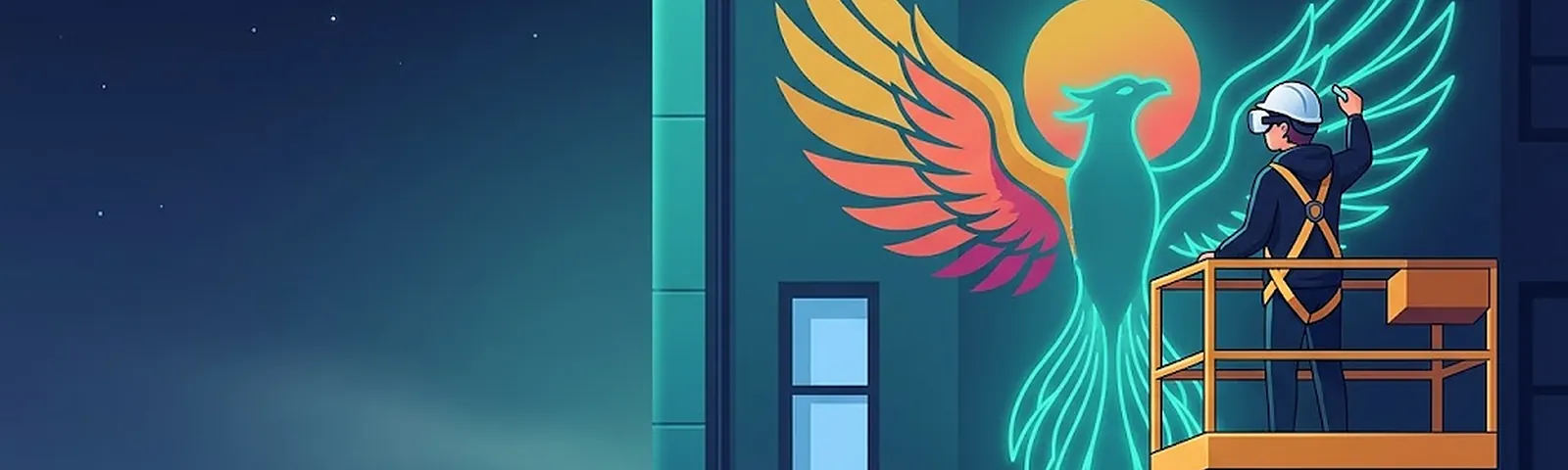
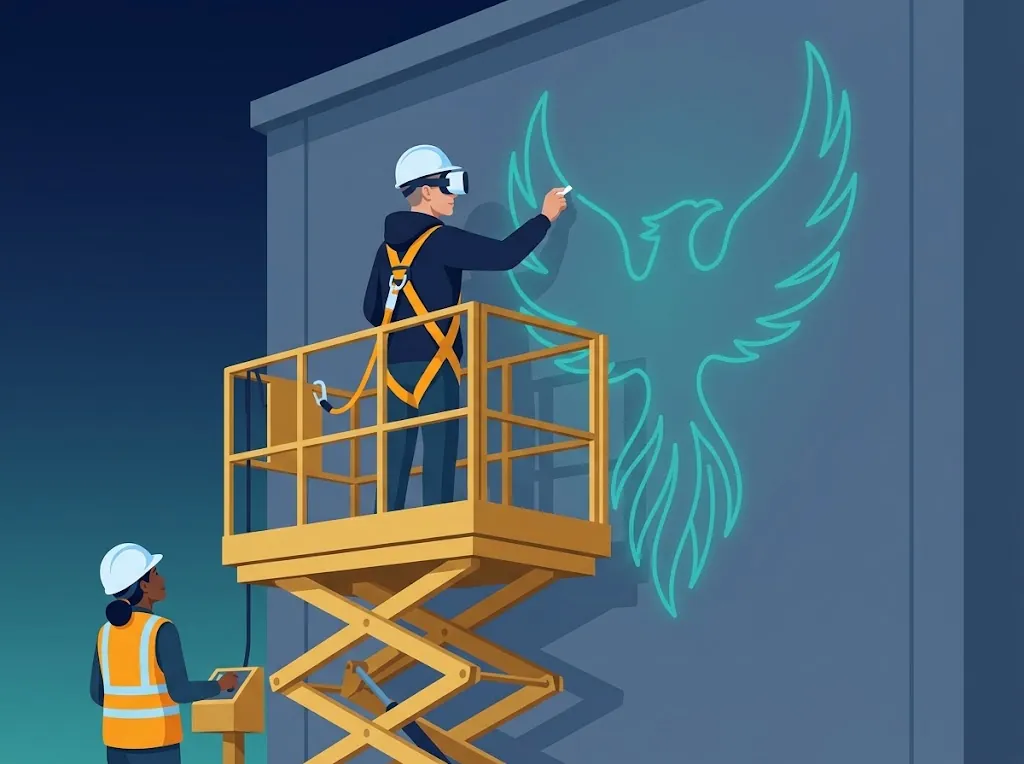
An artist on a lift wearing a Meta Quest traces a phoenix sketch that UZYTAK Mural shows on the wall

What you need

  • Meta Quest 3 or Quest 3S (Quest 2 works with black-and-white passthrough), charged, with both controllers
  • 3–5 paper markers: print our sheet or draw circles with a dot in the middle on paper
  • Masking tape to fix the markers to the wall
  • Chalk, oil pastel or graphite for the outlines; optionally a chalk holder
  • Your sketch or photo as a picture file (JPG or PNG) — or use one of the 6 samples
  • For work at height: a controlled lift or cradle with a safety harness and a lift operator

Printable marker sheet (A4, PDF)

Print it at 100 % size, cut out the five markers and tape them to the wall. The numbers help you touch them in the same order every time.

Step by step

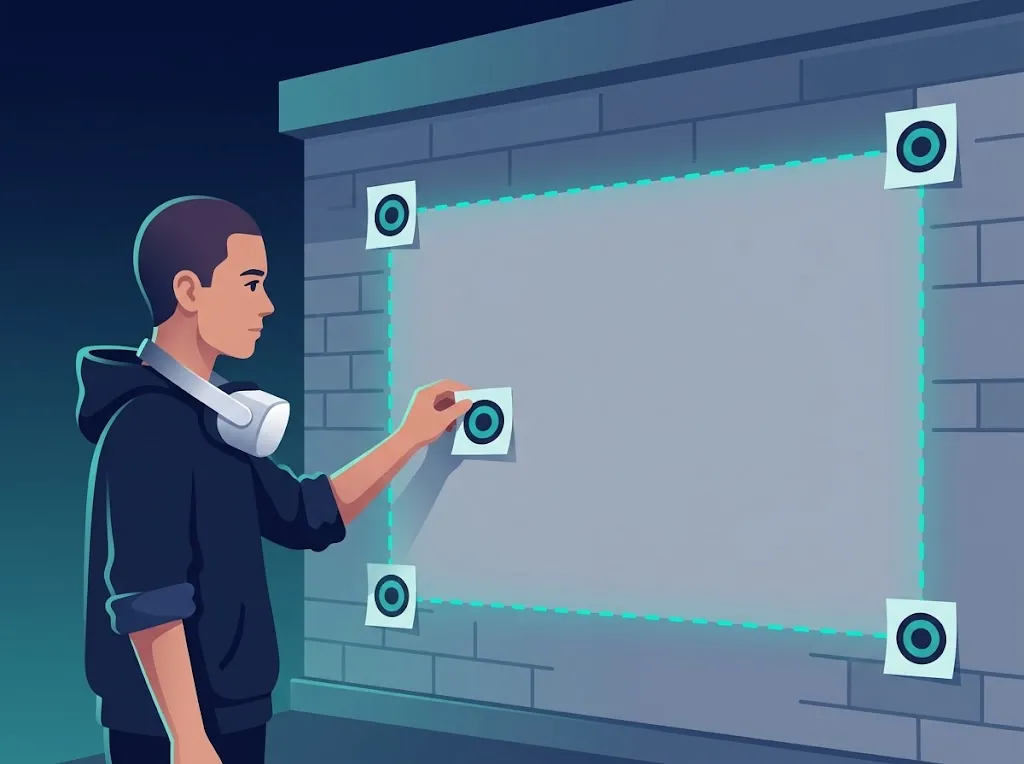
Paper markers in the four corners and the centre of the wall

1. Stick the markers on the wall

Tape 3–5 paper markers around the area of the future picture: one in each of the 4 corners and one in the centre. Number them with chalk (1, 2, 3…) — later you touch them in this order. The markers must not move until the work is finished.

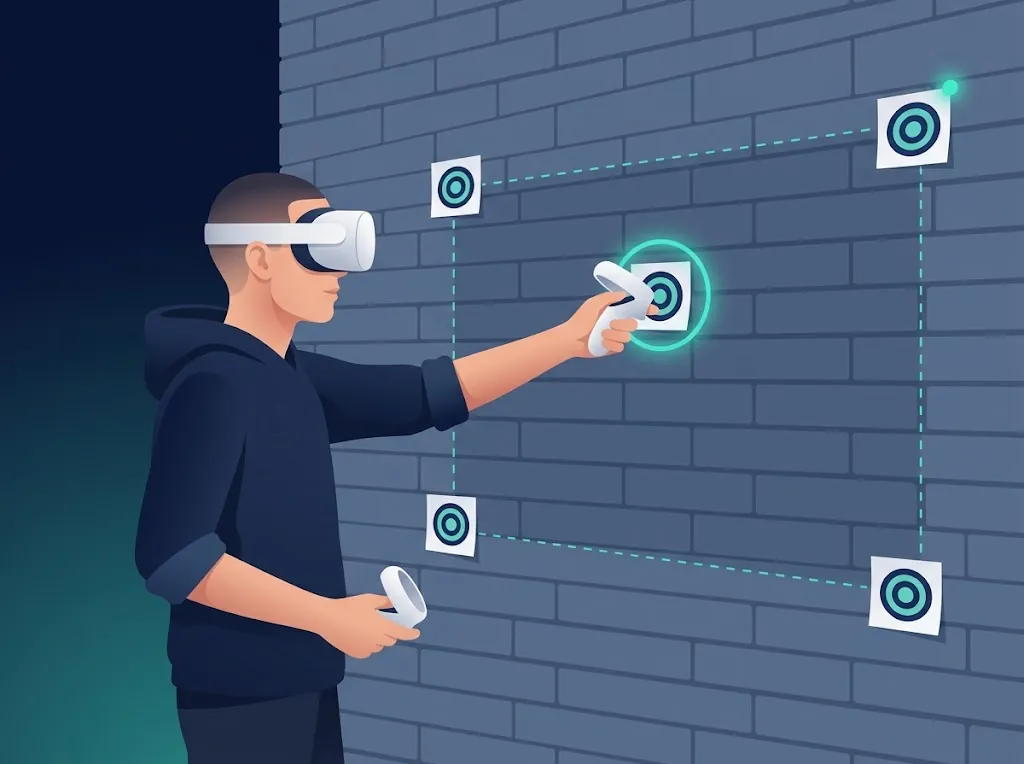
Touching a marker with the tip of the controller

2. Touch the markers with the controller

Put on the headset and start UZYTAK Mural. Touch the centre of marker 1 with the tip of the right controller and pull the trigger, then marker 2, and so on. After at least 3 markers press Done. The app now knows exactly where the wall is.

Choosing a sketch to put on the wall

3. Load your sketch

Choose a picture from the headset, send one from your phone over Wi-Fi (phone and headset on the same network; open the address the app shows in the phone browser and pick a photo), or take one of the 6 sample sketches.

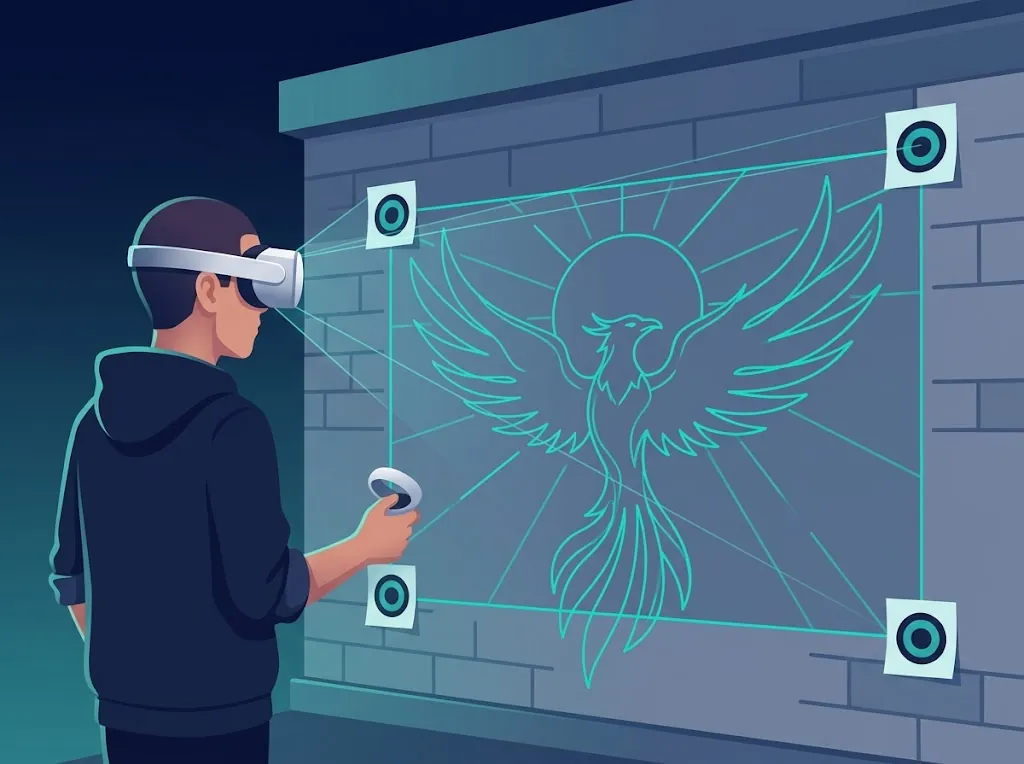
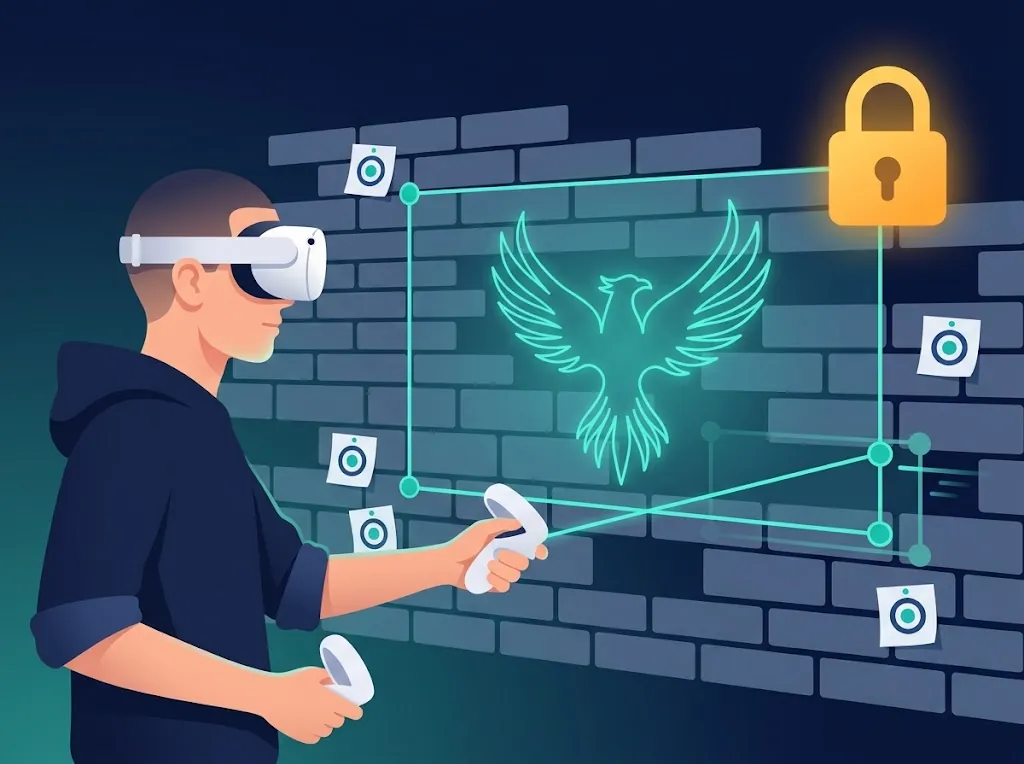
Stretching the picture by its corners and locking it

4. Set the size and lock

Drag the corners with the trigger until the picture sits where it should, or type the real width or height in metres — proportions are kept. Choose outline, photo or both, set the opacity, then press Lock.

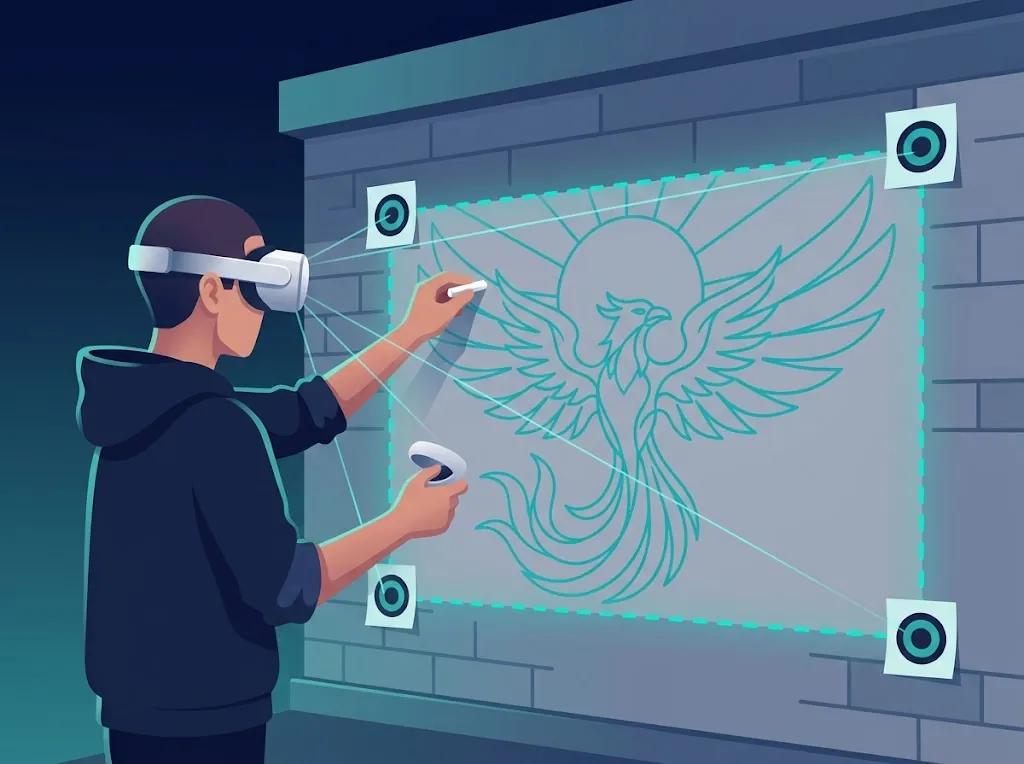
Tracing the outlines with chalk

5. Trace with chalk

Draw the outlines on the wall with chalk, oil pastel or graphite. If the picture has shifted, press Re-align and touch the markers again; the app shows the error in millimetres. When the outlines are done, take the headset off and paint.

Tips

  • Work in shade or in the evening: passthrough is clearer and the headset keeps its position better.
  • Number the markers and always touch them in the same order.
  • If you hold chalk in a holder, adjust the tip offset in Settings: the green dot must touch the wall exactly.
  • On big facades use sections (Pro) and finish one section before moving the lift.
  • Keep the battery charged; your project is saved automatically when the headset sleeps or the app closes.

Controls

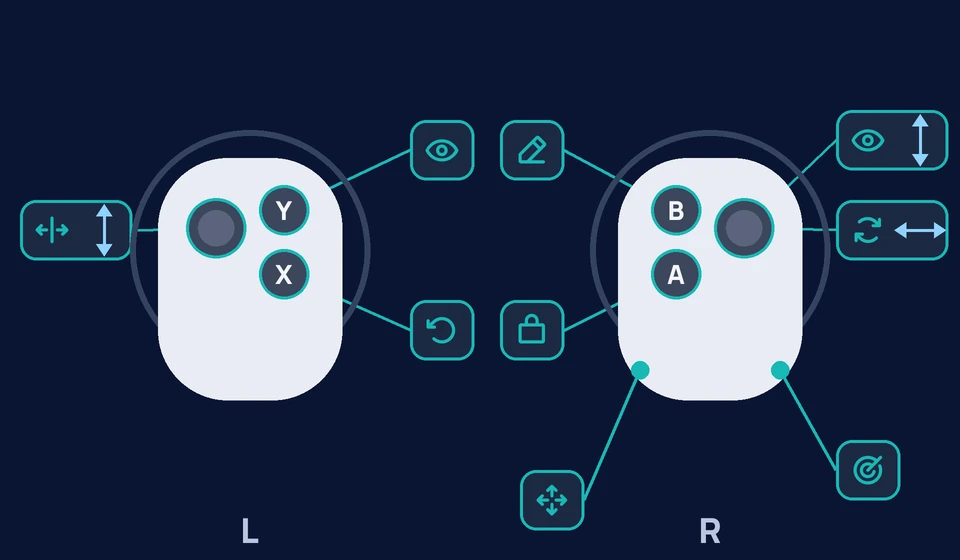
Map of the Meta Quest controller buttons in UZYTAK Mural

Right controller

Triggertouch a marker, press a panel button, drag a corner
Gripmove the picture
Stick ↕opacity (on the panel: scroll)
Stick ↔rotate the picture
Alock / edit
Bpicture mode: outline, photo, both

Left controller

Panelthe menu panel sits on the left controller
Yhide / show the panel
Xundo the last marker / skip a marker
Stick ↕picture size

Safety first

Mural work happens on walls, often at height and outdoors. The app shows these rules when it starts; follow them every time.

  • The headset is only for marking: trace outlines with chalk, pastel or graphite. Never paint while wearing it.
  • At height work only from a controlled lift or cradle with a safety harness, ideally two people: artist and lift operator. No ladders.
  • Never look at the sun with the headset: direct sunlight damages the screens. Work in shade, in the evening or with a visor.
  • Protect the headset cameras from dust and paint.
  • Follow the work-at-height and site safety rules of your country and of the lift rental.
  • Take the headset off before you move the lift, climb, or start painting.
Safety rules: lift with harness, no ladders, no sun into the headset lenses

Plans and prices

FeatureFreeProStudio
Price€0€59 per year€249 per year
Headsets113 (+€49 per year each extra)
Walls1any numberany number
Picture sizeup to 10 m²anyany
Markers against drift, re-align with the error in mm✓✓✓
Corners, size in metres, lock✓✓✓
Outline / photo / both, grid, mirror, opacity✓✓✓
6 samples, upload from your phone✓✓✓
Saved projects and walls—✓✓
Colour layers—✓✓
Sections A1, B2…—✓✓
Measured points—✓✓
Team on one wall——✓ soon
Client presentation——✓ soon
Variants A/B/C——✓ soon
PDF report with studio logo——✓ soon

Free

€0
  • 1 wall, picture up to 10 m²
  • Markers against drift, re-align with the error in mm
  • Stretch by the corners, exact size in metres, lock
  • Outline / photo / both, grid, mirror, opacity, line colour
  • 6 sample sketches, upload from your phone
  • 10 languages
Coming to Meta Horizon Store

Pro

€59 per year
  • Everything in Free
  • Walls of any size, as many walls as you like
  • Saved projects and walls
  • Colour layers from the picture palette
  • Sections A1, B2… for big facades
  • Measured points for the tape measure
Coming to Meta Horizon Store

Studio

€249 per year

3 headsets · +€49 per year for each extra headset

  • Everything in Pro, on 3 headsets
  • Team on one wall with shared markers soon
  • Presentation for the client on their own facade soon
  • Sketch variants A/B/C soon
  • PDF report for the client with your studio logo soon
Coming to Meta Horizon Store

Discount codes from our partners: −10 %.

Prices in euros. Pro and Studio will be sold as in-app subscriptions in the Meta Horizon Store — that is the only way to pay. Studio features marked “soon” are in development.

Questions

Which headsets does it work on?

Meta Quest 3 and Quest 3S, with colour passthrough. Quest 2 also works, but it shows the wall in black and white. Versions for Pico and Android XR headsets are planned.

Does it work outdoors and in the sun?

Yes, it works outdoors, but never look at the sun with the headset — direct sunlight can damage its lenses and screens. Work in shade, in the evening or with a visor. In bright light the cameras also hold their position less reliably.

How big can the wall be?

Free: one wall with a picture up to 10 m². Pro and Studio: walls of any size; split big facades into sections and work section by section from the lift.

How accurate is it? Does the picture drift?

The paper markers hold the picture to the wall. If the headset loses its position, choose Re-align and touch the markers again — the app shows the remaining error in millimetres. More markers and good light give better accuracy.

Do I need the internet?

No. All the work on the wall happens offline on the headset. Wi-Fi is only used if you send a picture from your phone — and only within your own network.

Where are my pictures and projects stored?

Only on the headset. We collect no data, there is no account and no analytics.

Can I paint while wearing the headset?

No. The headset is for marking only: trace the outlines with chalk, oil pastel or graphite, then take it off and paint.

When can I buy it?

UZYTAK Mural is being prepared for the Meta Horizon Store. This page gets a store button as soon as the app is available.

What are the markers? Do I need special ones?

Any small paper targets work — a circle with a dot in the middle is enough. You touch their centres with the controller, so the app needs no special printing. Our A4 sheet makes it quicker.

How many markers should I use?

At least 3, best 5: four corners and the centre. On very large walls you can use up to 9.

Can a team work on one wall?

Studio will let several headsets share the same markers on one wall. This feature is in development.


Need help?

Write to support@uzytak.com or use the contact form. We answer in your language.

UZYTAK Mural · Meta Quest · UZYTAK Mural · Privacy policy